Draft Orders: Shopify's Best-Kept B2B Secret

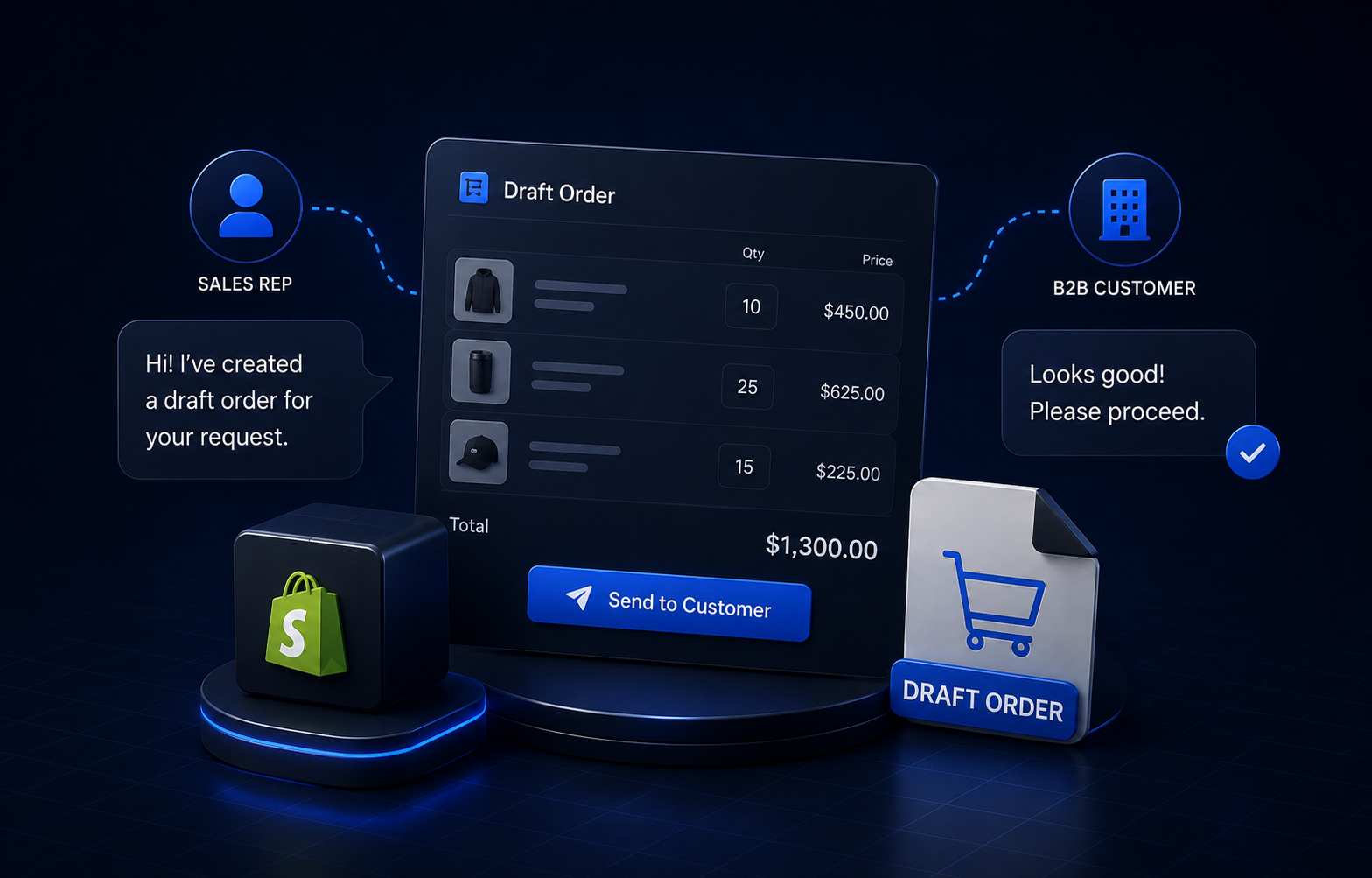



Most Shopify orders start with a buyer clicking "add to cart." In B2B, a lot of orders start somewhere else. A phone call. An email with a purchase order attached. A rep who knows this account needs the same twelve SKUs every six weeks. The buyer is not going to the storefront to initiate it. Someone on your team is. That is where draft orders come in. They are Shopify's native mechanism for creating and managing orders that originate on the seller's side rather than the buyer's. For manufacturers, distributors, and wholesale suppliers, understanding exactly how they work, and where they stop, is worth the time.
A draft order in Shopify is an order created by a store admin or staff member, rather than by a customer through the storefront. It exists in an incomplete state until it is confirmed, either by the customer completing payment through a sent invoice link, or by a staff member marking it as paid directly.
Draft orders can include any combination of products, custom line items, discounts, shipping charges, and taxes. They can be assigned to an existing customer account or to a one-off buyer. Once confirmed, they convert to live orders and move through fulfillment like any other Shopify order.
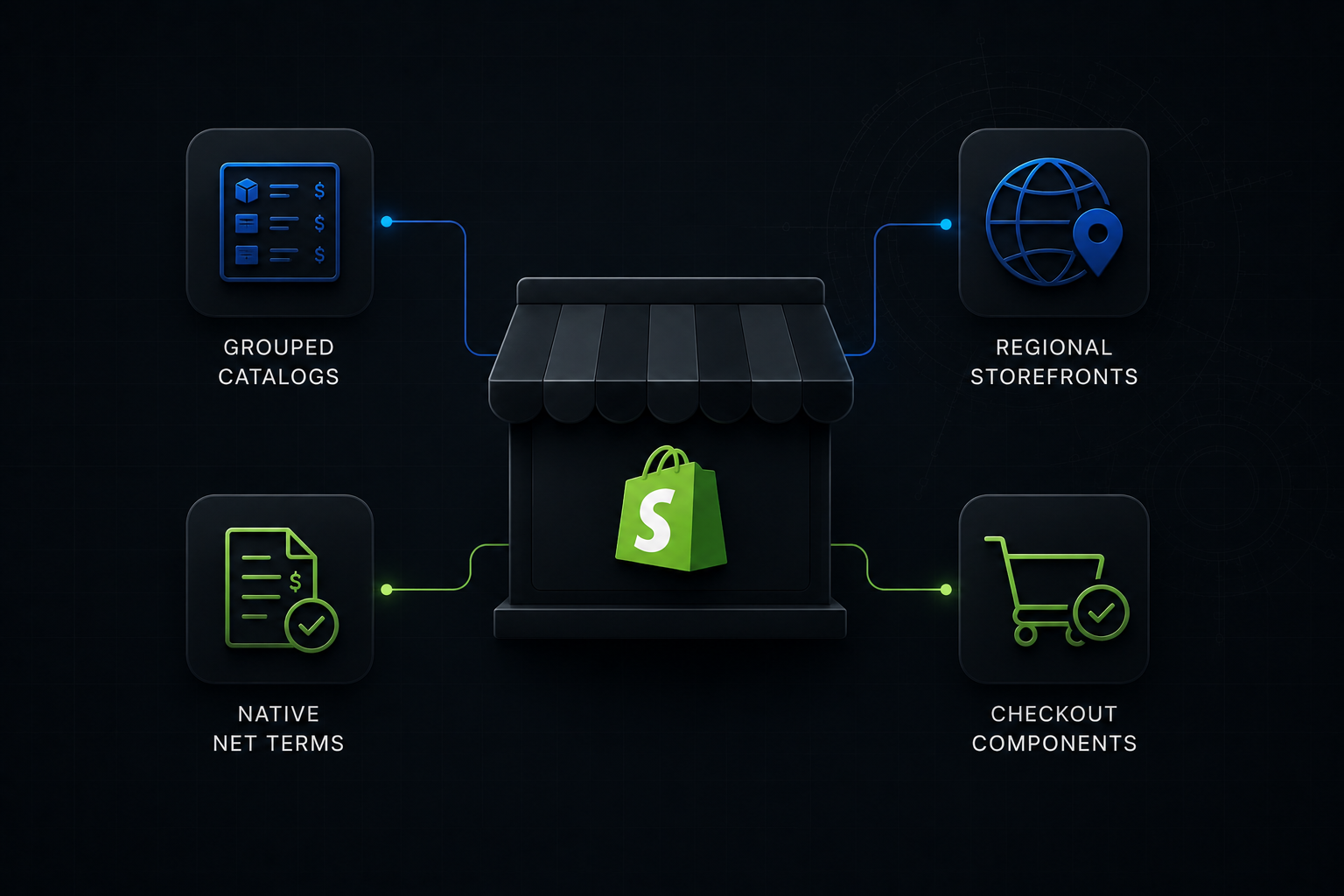
For merchants on Shopify Plus with B2B enabled, draft orders carry additional weight. When you create a draft for a buyer linked to a company profile, Shopify automatically applies that company's price list, payment terms, and credit settings. The rep building the order does not need to look up what that customer's pricing is or remember their net terms, it comes through automatically.
The core mechanic is straightforward. A staff member goes into the Shopify admin, opens Orders, and selects "Create order." They search for and add products, apply any discounts or custom pricing, assign the order to a customer, and save it as a draft.
From there they have a few options:
Send an invoice. Shopify generates a secure payment link and sends it to the customer by email. The customer clicks through, reviews the order, and completes checkout. Once payment is processed, the draft converts to a confirmed order automatically.
Mark as paid manually. If payment was taken outside Shopify, by phone, bank transfer, or in person, the staff member marks the draft as paid directly in the admin. It converts to an order without the customer going through checkout.
Collect a deposit. For Shopify Plus B2B merchants, draft orders support deposit collection. A rep can send a draft that only collects a portion of the total at checkout, useful for large or build-to-order purchases where commitment is needed before fulfilment begins.
Charge a vaulted card. If the customer has a saved payment method on file, a rep can charge it directly from the draft order without sending an invoice link. This removes the checkout step entirely for repeat buyers.
To create a draft order in the Shopify admin:
Go to Orders in the Shopify admin sidebar. Click Create order in the top right. Search for and add products using the product search. You can also add custom line items for products not in your catalog. Search for and select the customer. For B2B company accounts, this is where the price list and payment terms apply automatically. Adjust pricing, add discounts, set shipping, and apply any taxes as needed. Save the draft, or proceed to send an invoice or mark as paid.
Draft orders are available on all Shopify plans, though B2B-specific features like automatic price list application and deposit collection require Shopify Plus.
Draft orders live in the Orders section of the Shopify admin. At the top of the orders list, select the Drafts tab to see all orders currently in draft state.
Each draft shows the customer name, the draft total, the date it was created, and its current status (draft, invoice sent, or partially paid if a deposit has been collected). You can search and filter by customer, date, or status from this view.
On Shopify Plus, staff accounts can be given permissions scoped to specific companies, so sales reps only see the accounts they manage rather than the full account base.
There are three ways to convert a draft order to a confirmed order:
Customer completes the invoice. Send the customer a payment link from the draft. When they complete checkout, the draft automatically converts to an order.
Mark as paid. If payment has already been collected outside Shopify, open the draft and click "Mark as paid." The order is created immediately without going through checkout.
Charge a vaulted payment method. For customers with a saved card on file (Shopify Plus), you can charge the card directly from the draft order screen.
Once converted, the order moves to your standard order management flow. It can be fulfilled, partially fulfilled, or cancelled the same way as any other Shopify order.
A significant share of B2B revenue moves through rep-built orders rather than self-serve checkout. Phone orders, email purchase orders, trade account orders with negotiated pricing, all of these require someone on the seller side to create the order.
Draft orders are Shopify's native tool for this. On Shopify Plus with B2B enabled, when a rep assigns a draft to a company-linked buyer, all account-specific data populates automatically: the correct price list, the correct payment terms, any catalog restrictions for that account. The rep builds an accurate order without cross-referencing anything externally.
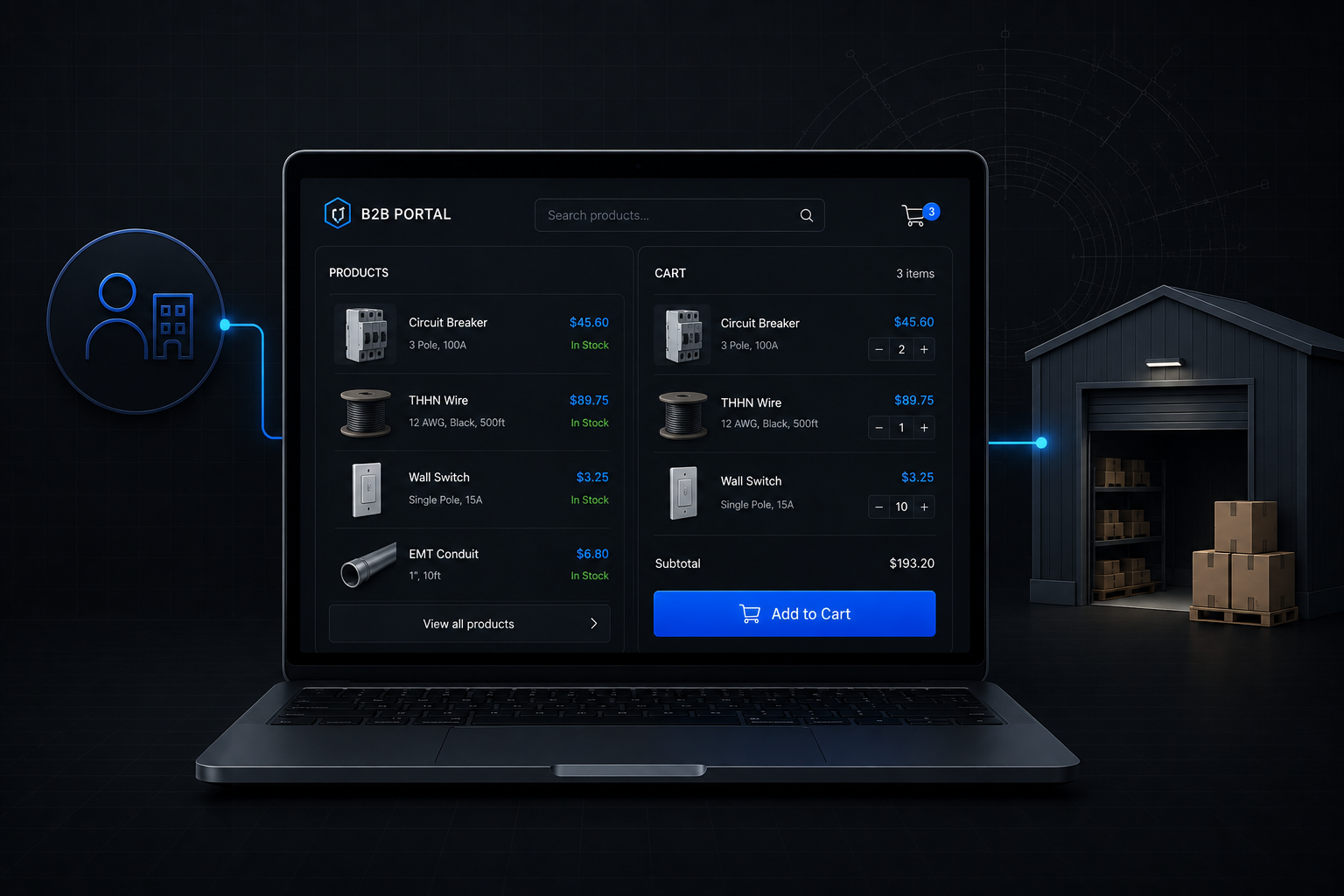
Shopify also supports customer impersonation for B2B, where a rep can log into the storefront as a specific buyer and navigate exactly as that customer would. This is useful for complex orders where the rep needs to see what the buyer sees rather than building blind from the admin's product search.
For straightforward rep-built ordering at moderate volume, this covers the workflow well.
These are two different things that occasionally get confused.
A draft order is an order in progress. It has products, pricing, and a customer assigned. It is waiting to be confirmed through payment or manual action. Draft orders live in the Orders section of the admin.
An unlisted product (or unlisted page) is a visibility setting for products or pages in Shopify. An unlisted product is not shown in your storefront or search results but can be accessed via a direct URL. Merchants use unlisted products to share specific items with selected buyers, or to set up products for manual orders without making them publicly browsable.
The two concepts are separate. A draft order can include listed or unlisted products. The draft/unlisted distinction is about order status vs. product visibility.
Draft orders work. They also have a ceiling, and B2B operations at real scale tend to hit it.
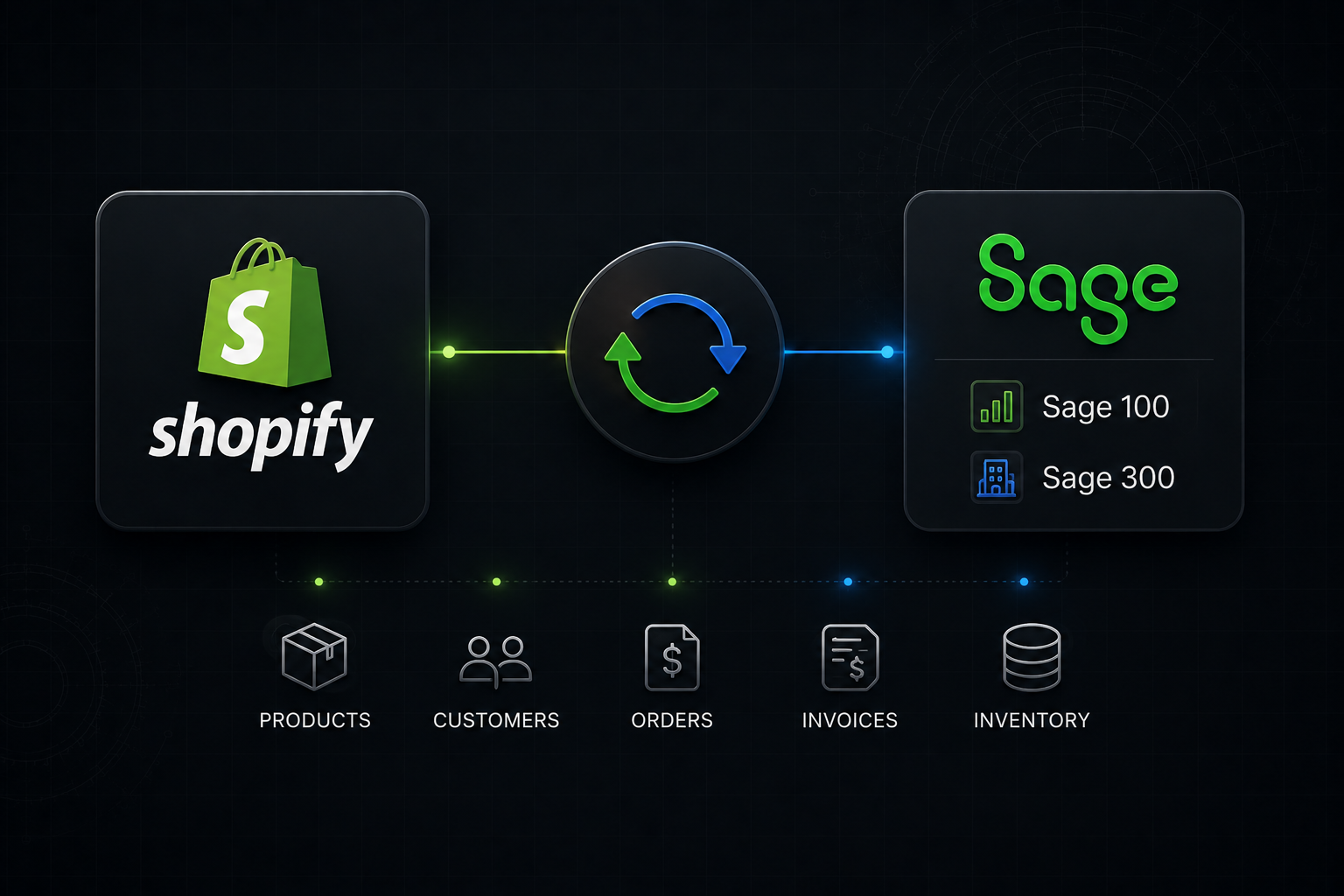
ERP disconnection. A rep building a draft order in Shopify admin works from whatever Shopify knows: the last synced price list, the last inventory update. If your pricing lives in NetSuite, Dynamics, or another ERP, and that sync runs nightly, the rep is building an order on data that is hours old. Price discrepancies between the draft and what the ERP shows are a common source of errors in rep-built workflows, and those errors, once they reach a buyer, cost credibility.
No workflow management layer. Draft orders are individual records. A rep managing forty active accounts with weekly reorders and ongoing quote negotiations has no queue, no status view, no way to see at a glance what is waiting for approval and what was sent three days ago without a response. The Shopify admin was built for order processing, not rep productivity. Most teams build their own layer on top: a spreadsheet, a shared inbox label, a Slack channel for flagging open drafts. That works until it doesn't.
Limited buyer collaboration. A draft order sent as an invoice link is functional, but there is no shared workspace where buyer and seller can go back and forth. If the buyer wants to change a quantity, add a note about delivery requirements, or negotiate a line item, the process becomes an email thread attached to a Shopify link. For simple orders this is fine. For anything that requires back-and-forth, the friction accumulates.
No ERP-enforced credit or compliance logic. On a standard draft order workflow, a rep can build an order that exceeds a customer's credit limit or violates their account terms without any warning. The ERP knows the limit. Shopify doesn't, unless someone has built a custom integration to surface it.
These are not arguments against using draft orders. For many B2B merchants, draft orders handle rep-built ordering cleanly and cost-effectively. But for manufacturers and distributors whose order workflows are central to revenue, not edge cases, the gaps above describe real operational cost.
Draft orders are the starting point. For manufacturers and distributors managing high-volume or complex B2B accounts, Uncap's platform builds the workflow layer that draft orders alone do not provide.
Across 380+ B2B commerce implementations since 2013, Uncap has seen the same ceiling repeatedly: draft orders handle routine rep ordering well, then hit the wall when account complexity grows. The Dealroom keeps every conversation, quote, revision, and confirmed order in one place alongside the account history. When a rep opens a draft for an account, they see what was discussed, what was ordered last quarter, and what pricing is currently in effect, without hunting across tools.
Advanced Quote Management handles the structured back-and-forth that happens before a draft becomes a confirmed order. Quote versions are tracked, revisions are visible, and the buyer can review and approve without the process collapsing into an email thread.
For B2B merchants where draft orders handle routine rep ordering cleanly, Uncap adds the visibility and workflow structure that scales with the account base.
Book a Demo to see how Uncap connects Shopify draft orders to a full B2B sales workflow.
Draft orders are orders created by store staff in the Shopify admin on behalf of customers, rather than by customers through the storefront. They can be sent to customers as invoice links for payment, marked as paid manually, or charged against a saved payment method. On Shopify Plus, draft orders for B2B company accounts automatically apply the customer's price list and payment terms.
Go to Orders in the Shopify admin and select the Drafts tab at the top of the orders list. All current draft orders are listed there with status, customer, date, and total. You can filter by customer or date to find specific drafts.
You can convert a draft order by sending the customer an invoice link and having them complete checkout, by marking the order as paid manually if payment was taken outside Shopify, or by charging a vaulted payment method directly from the draft. All three methods convert the draft to a confirmed order that moves into your standard fulfillment flow.
Yes. Shopify Plus supports draft order creation by staff accounts and customer impersonation, where a rep logs into the storefront as a specific buyer. Both methods apply the buyer's B2B account pricing and payment terms automatically from their company profile.
A draft order is an unconfirmed order in progress. An unlisted product is a product with its visibility restricted, it does not appear in storefront search or collections but can be accessed via direct URL. The two are separate concepts. Draft orders can include both listed and unlisted products.
Yes. On Shopify Plus with B2B enabled, draft orders integrate with company profiles. When a draft is assigned to a buyer linked to a company, Shopify applies that company's price list, payment terms, and catalogue settings automatically. Shopify Plus also adds deposit collection and vaulted card charging to the draft order workflow.
Draft orders work well for straightforward rep-built workflows at moderate volume. They become limiting when ERP pricing accuracy is critical, when reps manage large account bases that need workflow visibility across multiple open orders simultaneously, or when the buying process involves multi-party approval before an order can confirm.
Shopify does not include a built-in request-for-quote process. Draft orders can be used for manual quoting, a rep assembles a draft, shares it for review, and adjusts before sending an invoice, but there is no structured RFQ flow, negotiation thread, or version tracking in native Shopify. Merchants who need formal quoting add it through Uncap's Advanced Quote Management or third-party apps.