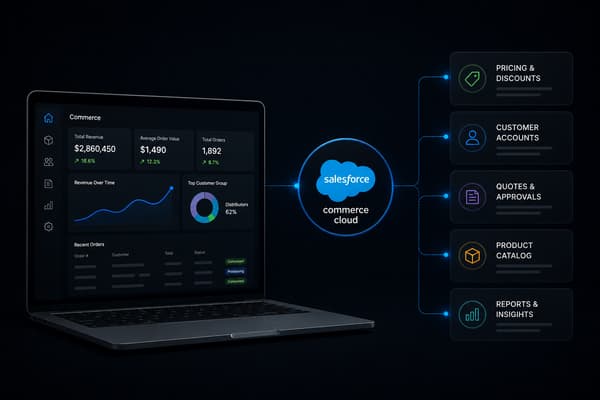


Most conversations about a B2B buyer portal on Shopify start with app recommendations. That is the wrong starting point. Before you evaluate any app, you need to understand what Shopify's native B2B layer actually provides as a self-serve buyer experience, where that native layer ends, and what operational infrastructure has to sit behind the portal for it to work correctly at any real volume.
A portal that shows buyers the wrong prices because catalog sync is broken, or that accepts net terms orders that never reach your ERP's AR module, is not a functional buyer portal. It is a source of disputes, manual corrections, and buyer friction. This guide covers what a B2B buyer portal is on Shopify, how to set one up, and what the back-office layer behind it has to look like for the portal experience to hold.
What Is a B2B Buyer Portal on Shopify?
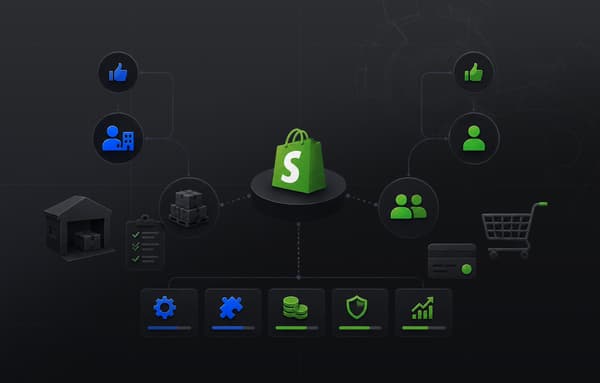
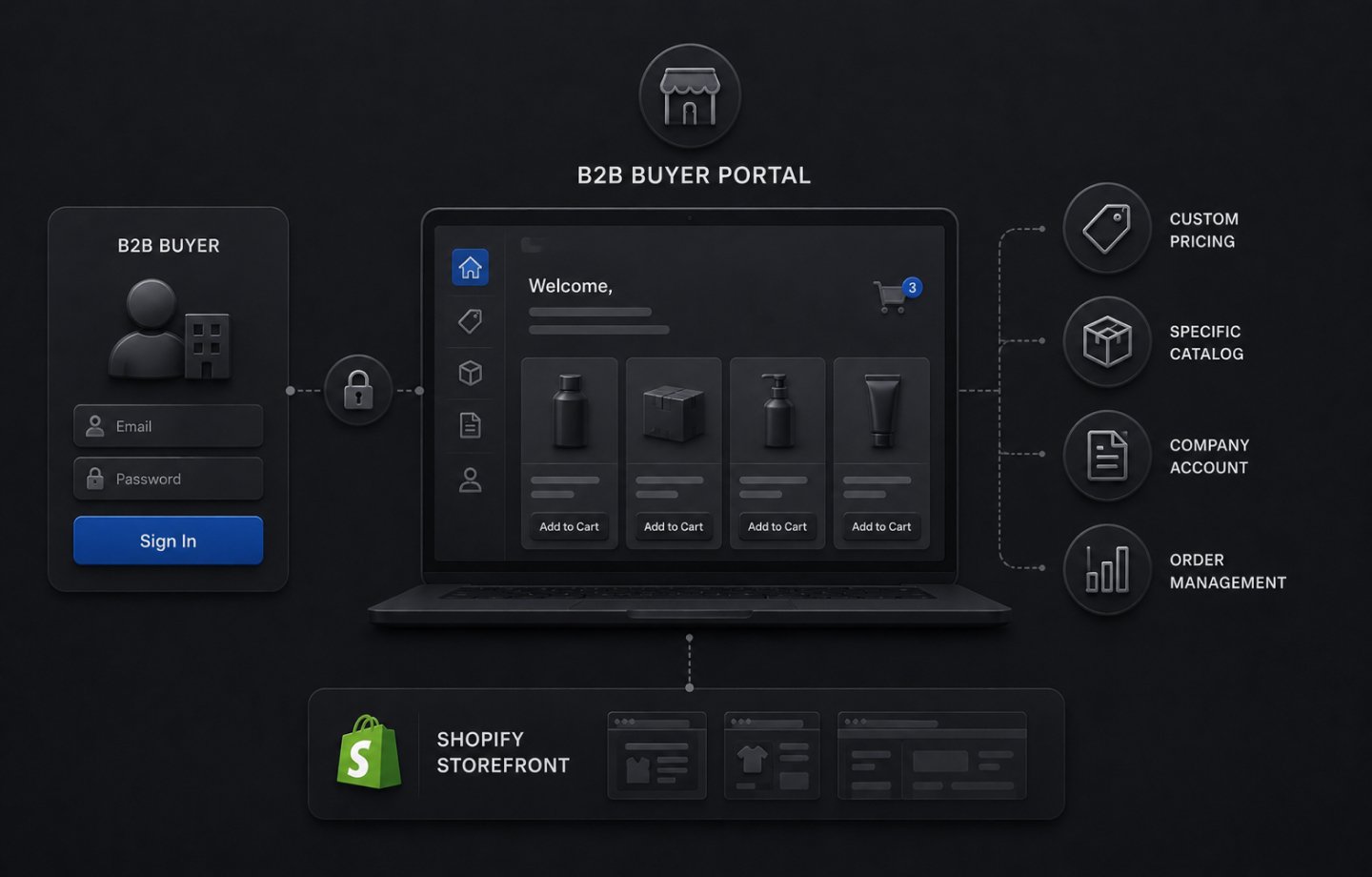
A B2B buyer portal on Shopify is the logged-in account experience your wholesale buyers access after authenticating as company account holders. It is not a separate piece of software or a standalone application bolted onto your Shopify store. It is the Shopify storefront itself, filtered and configured according to the company account the buyer has logged in to.
When a wholesale buyer logs in to their company account, the storefront presents their assigned pricing catalog (not your retail prices), their available payment methods (including any net terms assigned to their account), a purchase order number field at checkout, and any product catalog restrictions specific to their account. That entire configured experience is what practitioners mean when they refer to the B2B buyer portal.
This distinction matters because it changes how you think about building one. You are not deploying a portal application. You are configuring Shopify's native B2B layer to deliver the right experience to the right buyer on login, then deciding what extensions that native layer needs to meet your specific buyer program's requirements.
According to Shopify's B2B documentation, the native feature set covers company accounts, location management, customer-specific pricing catalogs, net payment terms, and purchase order number capture at checkout, all managed from within a single Shopify admin without a separate portal application.
We break down that full account-driven buyer experience in how a private order portal on Shopify Plus is actually structured.
What Shopify's Native B2B Portal Covers
As of April 2026, Shopify's core B2B buyer portal capabilities are available on every paid plan. The features that define the self-serve buyer experience are:
Company accounts and buyer authentication. Each wholesale buyer organization is set up as a company in your Shopify admin. The company can have multiple contacts, each with their own login credentials and assigned roles. Contacts can be buyers who can place orders, or read-only users who can view order history but not place new orders. A buyer logs in to your storefront with their company account credentials, and from that point the entire storefront experience responds to their account configuration.
Multi-location support. A company can have multiple ship-to locations, each with its own pricing catalog, payment terms, and contact assignments. A national wholesale account with regional distribution centers can be managed as one company with location-level configuration, rather than as separate accounts. Each location's buyers see only their location's settings at checkout. This structure fits verticals like building and construction supply, where job-based pricing and branch inventory decide what the portal has to get right on day one.
Customer-specific pricing catalogs. Each company or company location is assigned a pricing catalog that defines how their prices are calculated: a percentage discount from your standard retail prices, fixed price overrides per variant, or quantity-based price tiers. Buyers in their portal session see only their catalog pricing, never your retail price list. Catalogs can also restrict which products are visible and purchasable by a given buyer segment.
Net payment terms at checkout. Buyers with net terms assigned to their company location complete checkout without paying upfront. The checkout shows their term length and due date, the order creates with the payment due in the Shopify system, and your collection workflow follows afterward. Net 7, Net 15, Net 30, Net 45, Net 60, and Net 90 are all supported natively.
Purchase order number capture. A PO field is present at checkout for every B2B company account holder. Buyers enter their internal purchase order reference before submitting, and that number carries through to the order record, invoices, and any downstream systems receiving the order.
Self-serve order history and reordering. Logged-in buyers can view their complete order history, track fulfillment status, and reorder from previous orders. For wholesale buyers running regular replenishment cycles, this is the functional core of the portal experience.
For the full breakdown of what the April 2026 B2B expansion included across plan tiers, the Shopify B2B on all plans guide covers every feature and the specific Plus-only capabilities that remain on a higher tier.
How to Set Up a B2B Buyer Portal on Shopify
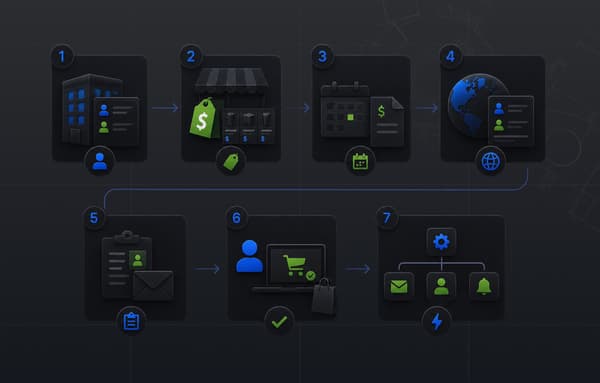
Setting up the portal is a configuration process in your Shopify admin, not a development project for the standard use case. The sequence matters because each step builds on the previous one.
Step 1: Define your company structure. Before you create anything in Shopify, map your buyer program. Which buyers are single-location accounts? Which are multi-location? Which buyer segments share pricing tiers and which need individual pricing? Which products are available to all wholesale buyers versus specific segments only? Your answers determine how you structure companies, locations, and catalogs. Getting this wrong at the start creates significant rework.
Step 2: Create companies and contacts. In the Shopify admin under Customers, create a company record for each buyer organization. Add the company's ship-to locations. Add buyer contacts under each company and assign their roles (buyer with ordering ability or viewer with read-only access). Assign each contact to the location or locations they purchase for. For existing buyer programs with large account lists, Shopify supports bulk company import via CSV to avoid manual creation at volume. That bulk path helps teams moving off a dated WooCommerce store, where account and pricing data had been scattered across plugins.
Step 3: Build and assign pricing catalogs. Create a pricing catalog for each buyer tier in your wholesale program. Configure each catalog's pricing method: percentage discount, fixed prices, or quantity breaks. Set any product restrictions within the catalog if certain SKUs are not available to that buyer segment. Assign the catalog to the appropriate companies or company locations. On paid plans below Plus, the active catalog limit is three; Shopify Plus removes this ceiling.
Step 4: Configure your storefront for the B2B experience. Your Shopify theme needs to be configured to surface the right B2B elements to logged-in company account holders: the PO number field, the payment terms display, and any messaging specific to wholesale buyers. Most Online Store 2.0 themes include native B2B support in their theme settings. If your theme does not, this is the step that typically requires a developer.
Step 5: Test from the buyer side. Before going live, log in as a test company account buyer for each major account type and complete a full purchase cycle: browse catalog, view pricing, add to cart, enter a PO number, and complete checkout with net terms. Verify that the pricing, product visibility, and payment terms reflect what you configured for that account. Also test the order history view and the reorder flow. The most common configuration errors, wrong catalog assignment, incorrect pricing method, or missing term length, surface immediately in a buyer-side test session.
For a more detailed walkthrough of how the company account and location architecture is organized for wholesale operations, the Shopify B2B for wholesale suppliers guide covers the full account structure in depth.
What the Native B2B Buyer Portal Does Not Cover
The native Shopify B2B portal handles self-serve ordering well. There are specific capabilities that wholesale buyer programs require that it does not cover.
Request for quote (RFQ) workflows. Some wholesale buyers do not place orders from a catalog. They submit a quote request with quantities and specifications, wait for a priced response, and approve the quote before it becomes an order. Shopify has no native RFQ capability. If your buyer program includes quote-to-order workflows, an app or custom development is required.
Order approval workflows. Enterprise buyers often require internal approval before an order is submitted. A purchasing manager at a distributor might need to approve any order above a certain value before it goes to the supplier. Shopify does not have a native order approval step within the buyer portal. Buyers submit orders, and approval logic, if required, needs to be enforced outside the Shopify checkout.
Credit limit enforcement at checkout. A buyer with a large outstanding balance on net terms can place another order and Shopify will process it. There is no native credit limit check at the checkout layer. Enforcing credit limits requires Shopify Functions (a Shopify Plus-only and developer investment) or a manual approval step in your fulfillment workflow.
Invoice and statement access. Buyers cannot access their invoice history, outstanding balance summaries, or account statements from within the native Shopify portal. Order history is available, but the financial account view that a wholesale buyer's accounts payable team typically wants, invoices, due dates, payment history, and aging summary, does not exist natively in Shopify's buyer-facing layer.
Custom ordering forms and quick order tools. Wholesale buyers placing large reorders often want a fast entry interface: a spreadsheet-style form where they enter SKU and quantity across many line items at once, rather than browsing product pages and adding items individually. Shopify does not include a native quick order form. For buyers placing 50-line orders regularly, the standard product browsing experience is friction that reduces portal adoption.
For Shopify B2B apps that address these gaps, Uncap's guide to B2B ordering portal apps covers the apps built specifically for wholesale self-service ordering on Shopify.
The Back-Office Layer the Portal Depends On
This is the section most B2B portal guides skip. The buyer-facing portal experience depends entirely on the accuracy of the data behind it. If the data behind the portal is wrong or out of sync, the portal experience is broken regardless of how well it is configured.
Catalog pricing must sync from your ERP. If your ERP holds your canonical pricing for each wholesale account, those prices need to flow into the corresponding Shopify pricing catalog accurately and continuously. A price change in your ERP that does not reach the Shopify catalog means buyers see and order at the old price. At any meaningful order volume, catalog sync errors create invoice disputes that cost more to resolve than the integration would have cost to build correctly.
Net terms orders must reach your ERP's AR module. A buyer placing an order on Net 30 through the Shopify portal creates an order in Shopify with a payment due date. That order record needs to create a corresponding accounts receivable entry in your ERP with the correct amount, the correct buyer, and the correct due date. Without an integration that makes that happen automatically, your finance team manually creates the AR entry for every net terms order, and any order that falls through the gap becomes an uncollected receivable that your AR aging does not show.
Inventory must reflect reality. Your portal shows buyers what is available. If your Shopify inventory is not synced from your warehouse management system or ERP, buyers are ordering against quantities that do not reflect actual stock. Oversells on the portal create fulfillment failures and the buyer relationship damage that follows.
Product catalog updates must reach the right layer. When you add a new SKU, discontinue a product, or change a product's availability for a specific buyer segment, that change needs to reach the correct Shopify catalog, not just your retail product list. If new products are added to Shopify but not assigned to the relevant wholesale catalog, your portal buyers cannot see or order them, which means the portal is functionally incomplete from their perspective without any visible error on your side.
For manufacturers and distributors running NetSuite, SAP, or Microsoft Dynamics alongside Shopify, Uncap Connect is built for exactly this integration layer: keeping Shopify pricing catalogs, inventory, and product data in sync with your ERP, and routing net terms orders from Shopify into your ERP's AR module automatically so your finance team works from accurate receivables data.
Building the Right B2B Buyer Portal for Your Buyer Program
The native Shopify B2B portal is the right starting point for most wholesale operations. It handles the buyer ordering experience correctly, it is embedded in the Shopify admin without requiring a separate platform to manage, and as of April 2026 it is available on every paid plan without a Shopify Plus contract.
The questions that determine what you need to build on top of it are specific to your buyer program. Do your buyers require quote workflows before they can submit an order? Do you have a credit limit policy that needs to be enforced at checkout? Do your buyers' AP teams need invoice access from within the portal? Does your wholesale pricing originate in an ERP that needs to stay in sync with your Shopify catalogs? Each yes changes the scope of what the portal implementation needs to include.
Getting those requirements mapped before you start the configuration is the difference between a portal that buyers actually use and one that requires your sales or ops team to manually correct what the portal should have done automatically. As a Shopify Platinum Partner since 2013 with more than 380 B2B and wholesale commerce implementations for manufacturers, distributors, and wholesalers, Uncap has designed buyer portal architectures across a wide range of buyer program structures, ERP environments, and operational models. If you are building a B2B buyer portal on Shopify and want an honest read on what your specific program requires, talk to our experts before you commit to the build.
Frequently asked questions
What is a B2B buyer portal on Shopify?
The signed-in experience where wholesale buyers see their company's pricing, place and track orders, manage locations and permissions, and reorder, built on Shopify's native B2B company accounts.
What does Shopify's native buyer portal cover?
Company login, negotiated pricing, order history, reordering, payment terms, and per-buyer permissions. It replaces the email-and-phone loop for routine orders.
What does the native portal not cover?
Live ERP data (real-time stock, invoices, credit balances), quoting, and statements. Those need the back-office layer synced in, or the portal shows a partial picture.
Do you need an app to build a Shopify buyer portal?
Not to start. The native portal covers the core. Apps and integrations earn their place when buyers need quotes, ERP-side documents, or workflows the native layer does not model.